Blocking someone on Facebook is one of the easiest ways to stop unwanted interactions. When you block a person, Facebook limits their ability to find your profile, send you messages, interact with your posts, or contact you through certain Facebook features.
However, situations can change. You may have blocked someone during an argument, accidentally blocked the wrong account, or simply decide that you no longer want the person on your blocked list. In that case, you can unblock them through Facebook’s settings.
The good news is that removing someone from your Facebook blocked list is relatively simple. The exact location of the option can vary slightly depending on whether you are using the Facebook mobile app, a mobile browser, or a computer.
How to Remove Someone from Your Facebook Blocked List
The most reliable way to unblock someone is through Facebook’s Blocking settings.
Step 1: Open Facebook
Start by opening the Facebook app on your Android or iPhone, or visit Facebook through a web browser on your computer.
Make sure you are logged into the account that originally blocked the person. If you have more than one Facebook account, this is particularly important because each account has its own blocking list.
Step 2: Open Settings
On the Facebook app, tap the Menu icon, usually represented by your profile picture or three horizontal lines.
Next, open Settings & privacy and select Settings.
Facebook occasionally changes the appearance and organization of its settings menu, so the exact wording or position of the option may look different depending on your app version.
Step 3: Find the Blocking Section
Within Settings, look for the section relating to Audience and visibility, privacy, or Blocking.
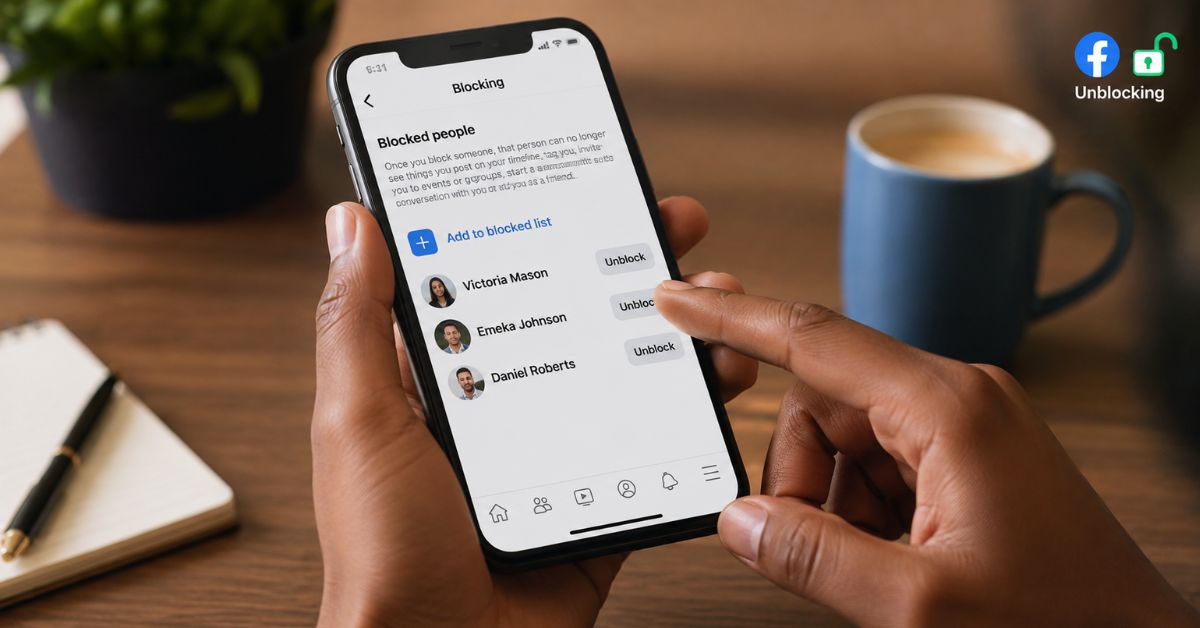
Tap Blocking to view the accounts you have previously blocked.
This page is useful because you can see the people currently restricted by your Facebook account instead of having to search for each person individually.
Step 4: Locate the Person
Scroll through the blocked list until you find the person you want to unblock.
If your blocked list contains several accounts, take your time to confirm the correct person before removing the restriction. Check the person’s name and profile picture where available.
Step 5: Tap Unblock
Once you have found the correct account, select Unblock beside the person’s name. Facebook may display a confirmation message explaining what happens when you unblock the account.
Review the message and confirm that you want to proceed. The person should then be removed from your blocked list.
How to Unblock Someone on Facebook Using a Computer
If you prefer using Facebook on a laptop or desktop computer, you can also manage your blocked accounts from the settings menu.
First, sign into Facebook and click your profile picture in the upper-right area of the screen.
Select Settings & privacy, followed by Settings. Look through the available settings for Blocking. Depending on Facebook’s current interface, you may find it under a privacy-related section.
Open the Blocking page and look for the list of blocked people, Find the person you want to remove and click Unblock beside their name. Facebook will normally ask you to confirm the action before completing it.
After confirmation, the account should no longer appear on your blocked list.
What Happens After You Unblock Someone?
Before you unblock someone, it is important to understand what changes. Unblocking removes the Facebook block, but it does not necessarily restore your previous relationship with that person.
You May Need to Send a New Friend Request
If you were previously Facebook friends, you may need to send a new friend request after unblocking the person.
This is one of the most common points of confusion. Some users expect their previous friendship to automatically return after selecting Unblock, but blocking and unblocking does not work like temporarily pausing a friendship.
If you want to become friends again, visit the person’s profile and look for the option to add them as a friend.
They May Be Able to Find Your Profile Again
Once someone has been unblocked, the restrictions caused by the block are removed. Depending on your privacy settings, the person may be able to find your profile and interact with content that you have made available to them. This is why checking your privacy settings before or after unblocking can be useful.
Your Old Messages May Still Need Attention
Unblocking someone does not necessarily restore your previous Messenger relationship exactly as it was before the block.
If you want to communicate with the person again, open Messenger and check whether you can start a new conversation or access the existing conversation.
Keep in mind that blocking, deleting, archiving, or removing conversations are separate actions. Unblocking someone should not be treated as a way to recover deleted messages.
Can You Unblock Someone Without Adding Them as a Friend?
Yes, Unblocking and sending a friend request are two different actions. You can remove someone from your blocked list without immediately becoming Facebook friends with them.
This can be useful if you simply want to remove the block but do not necessarily want to reconnect. Your privacy settings will determine what the person can see and how they can interact with you.
If you later decide that you want to reconnect, you can send a friend request separately.
Why Can’t I Find Someone on My Blocked List?
Sometimes users search their blocked list and cannot find the person they expected to see. There are several possible reasons.
First, make sure you are checking the correct Facebook account. A block placed on one account does not automatically appear on another account. The person may also have changed their Facebook name, deactivated their account, or deleted their account.
Another possibility is that you never actually blocked the person. You may have unfollowed, restricted, unfriended, or muted them instead. These features work differently from blocking.
If you are unsure, searching for the person’s profile directly may help determine whether their account is still active.
What If the Unblock Button Is Missing?
Facebook’s settings and interface can change as the platform receives updates. If you cannot see the Unblock button, start by checking that you have opened the correct Blocking section.
You can also try updating the Facebook app through your device’s app store. If you are already using the latest version, close and reopen the application and check the settings again.
If the problem continues, try accessing Facebook through a web browser. Sometimes an option that is difficult to locate in the mobile application is easier to find through the desktop version. It is also worth checking whether the person’s account is still active.
Can You Block the Person Again After Unblocking Them?
Yes, Facebook generally allows you to block someone again if you change your mind.
However, you should avoid repeatedly blocking and unblocking an account simply to test whether a feature is working. If you are experiencing a technical problem, give Facebook time to update the account status or try another device or browser.
If you decide that you no longer want the person to contact you, you can use Facebook’s blocking settings again.
Should You Unblock Someone on Facebook?
Whether you should unblock someone depends entirely on why you blocked them in the first place. If you blocked the person accidentally or because of a temporary disagreement that has been resolved, unblocking may make sense.
On the other hand, if the original block was related to harassment, unwanted contact, scams, threats, or another serious concern, there may be no reason to remove the restriction.
Remember that you are not required to unblock someone simply because they ask you to. Facebook’s privacy and blocking tools exist to give you control over who can interact with you.
Check Your Privacy Settings After Unblocking
After removing someone from your blocked list, consider reviewing your Facebook privacy settings. Pay particular attention to who can see your posts, who can send you friend requests, who can find you using your contact information, and who can interact with your public content.
This is especially important if you want to unblock someone without giving them unrestricted access to your profile. Your privacy settings and blocking settings work together. Blocking is a strong restriction, while privacy settings allow you to control access to individual parts of your Facebook activity.
Final Thoughts
Removing someone from your Facebook blocked list only takes a few steps. Open Facebook, go to Settings & privacy, access Settings, find Blocking, locate the person’s account, and select Unblock.
The important thing to remember is that unblocking does not automatically restore a previous Facebook friendship or guarantee that everything will return to exactly how it was before the block.
If you want to reconnect, you may need to send a new friend request. If you only want to remove the restriction, you can unblock the person without adding them as a friend.
Before making the change, consider why you blocked the person originally and review your privacy settings afterward. That way, you can regain control of your Facebook connections without giving up control of your personal information.