When an Android app starts taking too long to open, freezing during use, or displaying outdated information, clearing its cache can be a practical troubleshooting step. However, many users hesitate because they worry that clearing the cache will remove their photos, account details, saved work, or other important information.
The good news is that clearing an app’s cache is different from clearing its storage or data. Understanding this difference can help you troubleshoot common app problems without unnecessarily resetting the app.
This guide explains how to clear app cache without deleting data, what the process changes, and when you should consider other solutions.
What Is App Cache?
App cache consists of temporary files that an application stores to help it load content and perform certain tasks more efficiently. Depending on the app, these files might include downloaded images, temporary information, or other reusable resources.
Over time, cached files can become outdated or occupy additional storage space. A cache problem can sometimes contribute to an app behaving unexpectedly, although clearing the cache does not fix every type of technical issue.
For example, if an app keeps showing an old screen or repeatedly stops responding, clearing temporary files may be worth trying before reinstalling it.
How to Clear App Cache Without Deleting Data
The exact menu names depend on your Android phone’s manufacturer and software version, but the general process is similar.
Step 1: Open your phone’s Settings
Find and open the Settings application on your Android device.
Step 2: Select Apps
Look for an option such as Apps, Applications, or App management. Some phones may require you to open a list of installed applications.
Step 3: Choose the app
Select the application whose cache you want to remove. For example, you might choose a browser, social media app, or another application experiencing problems.
Step 4: Open Storage
Look for Storage, Storage & cache, or a similar option.
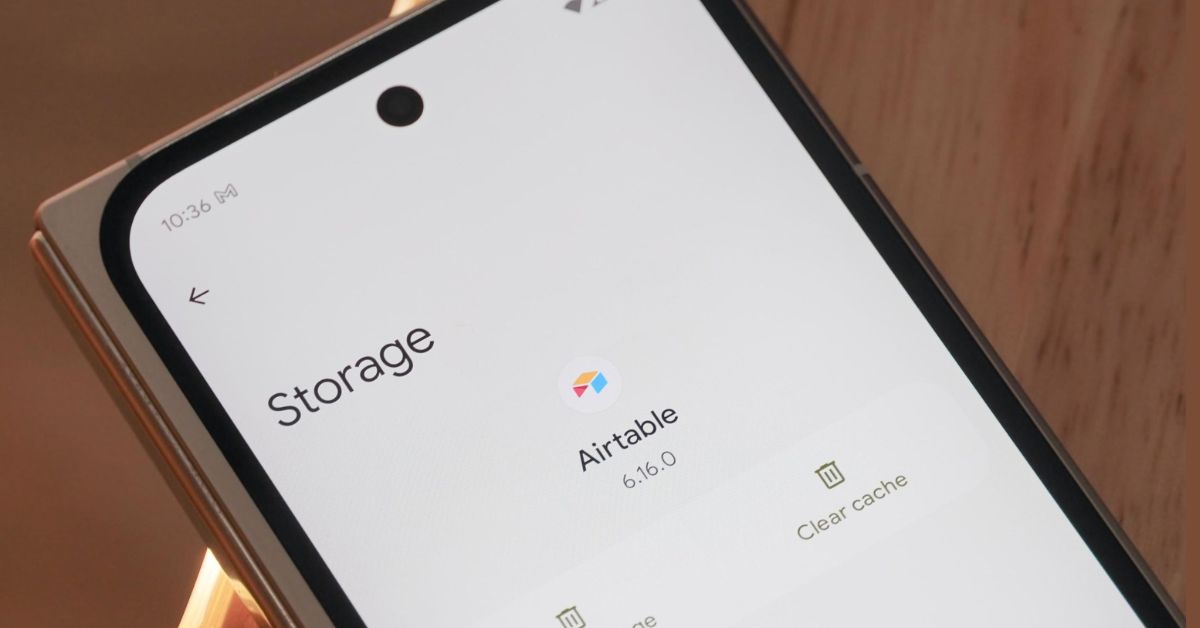
Step 5: Tap Clear cache
Select Clear cache. Avoid choosing Clear storage, Clear data, or an equivalent option unless you understand what that option does and are prepared for its consequences.
Your phone may show that the cache has been reduced to zero or another small amount. This is normal.
Does Clearing Cache Delete Your Photos and Files?
In general, clearing an app’s cache is intended to remove temporary cached files rather than erase the app’s complete stored data.
However, the distinction between cache, app storage, downloads, and files saved in separate folders matters. You should not assume that every option labeled “clear” has the same effect.
Before selecting any reset or deletion option, read the wording displayed by your phone. If you are unsure, avoid clearing app data until you have confirmed what the action will remove.
Clear Cache vs Clear Data
These two options are often placed close together, which is why users sometimes select the wrong one.
Clear cache: Removes temporary cached information. The app may rebuild some of those files when you use it again.
Clear data or clear storage: Resets the app’s locally stored information, depending on the phone and application. You may need to sign in again, restore settings, or reconfigure the app.
The exact behavior varies between applications. Some apps also store important information online, while others depend more heavily on local storage.
When Should You Clear an App’s Cache?
Clearing cache may be worth trying when:
- An app is repeatedly freezing.
- A page or screen appears outdated.
- An app is using an unexpectedly large amount of temporary storage.
- The app behaves differently after an update.
- You want to perform a basic troubleshooting step before reinstalling it.
It is not necessary to clear every app’s cache constantly. If an application is working normally, there may be no practical reason to remove its temporary files.
What to Do If Clearing Cache Does Not Work
If the issue continues, try checking for an app update, restarting your phone, or reviewing whether your device has enough available storage.
You can also check the app’s official support information for known problems. If the application is still malfunctioning, reinstalling it may help, but you should first consider whether any locally stored information needs to be backed up.
Conclusion
Knowing how to clear app cache without deleting data can help Android users approach common app problems more carefully. The process is generally straightforward, but the most important step is distinguishing Clear cache from Clear data.
Use cache clearing as one troubleshooting option rather than a guaranteed solution. If the problem continues, investigate updates, storage limitations, permissions, and other possible causes.
FAQs
Does clearing cache log me out of an app?
Clearing cache generally does not log you out, but behavior can vary. Clearing app data is more likely to reset local settings or sign-in information.
How often should I clear app cache?
There is no universal schedule. Clear it when a specific troubleshooting need arises rather than doing it automatically every day.
Will clearing cache make my phone faster?
It may help with certain app-related problems, but it does not guarantee a noticeable improvement in overall phone performance.