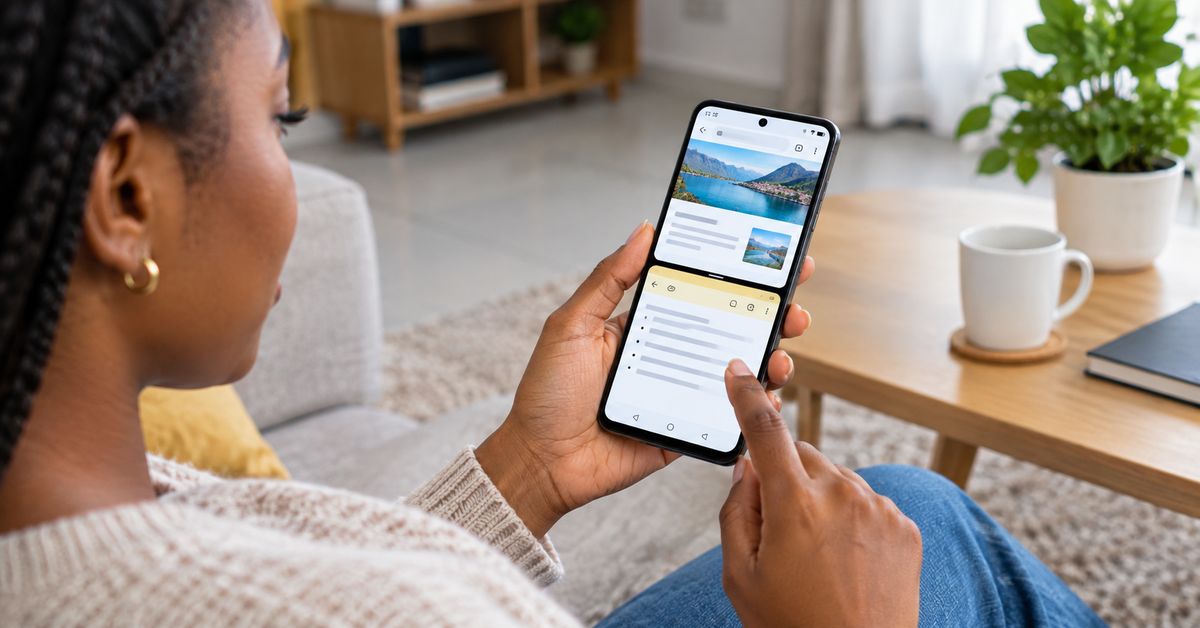
How to use split screen on Android is one of those small phone features that can make a surprisingly big difference when you need to work with two apps at once.
You may want to read information from Chrome while writing it down in a notes app, watch a video while checking something in another application, or copy information between two compatible apps without repeatedly switching back and forth.
Android supports using two apps at the same time on supported phones, although the exact steps and availability can depend on the device manufacturer and Android version. Google also notes that some devices and apps may not support split-screen mode.
What Is Split Screen on Android?
Split screen allows two compatible applications to appear on your phone screen at the same time. Instead of opening one application, minimizing it and then opening another, Android divides the screen so you can work with both.
For example, you could have:
- Chrome at the top and Google Keep at the bottom.
- YouTube at the top and a messaging app below.
- A calculator beside a document.
- Files by Google beside another application that supports moving files.
- Email above and a notes application below.
The usefulness depends largely on the size of your phone and the applications you are using.
How to Use Split Screen Mode on Android
The menu can differ between Samsung, Google Pixel, Xiaomi, Tecno, Infinix and other Android phones, but the general process is similar.
Step 1: Open the First App
Start by opening the application you want to use. For example, if you want to research something online while taking notes, open Chrome first.
Step 2: Open Recent Apps
Open the Recent Apps or Overview screen. On gesture-navigation phones, this is usually done by swiping up from the bottom of the screen and holding briefly. On phones using navigation buttons, tap the recent-apps button.
Step 3: Select the App’s Icon
Find the application you currently have open, tap its application icon at the top of its recent-app card. A menu may appear with options such as Split screen, Open in split screen view, or another similar option.
Step 4: Select Split Screen
Tap Split screen, the first application should move into one section of the display.
Step 5: Choose the Second App
Android will then show other applications that can be used in the second part of the screen. Select the application you want, you should now have two apps visible at the same time.
Google’s current Pixel instructions, for example, use the recent-apps view, selecting an app’s icon and then choosing Split screen before selecting the second app.
How to Exit Split Screen Mode
You do not have to keep the two applications open indefinitely, there is normally a divider between the two applications.
Drag the divider toward the top or bottom of the screen, depending on which application you want to continue using. On some devices, you may also see an option to exit split screen when interacting with the divider.
What If You Cannot Find Split Screen?
This does not necessarily mean your phone is faulty. Android’s split-screen experience varies by device. Google specifically notes that some devices may not support certain multitasking features, and instructions can differ between manufacturers. There are several possibilities:
Your Phone Does Not Support It
Some lower-end or older Android devices may not provide the same multitasking options as newer phones.
The App Does Not Support Split Screen
Even when the phone supports split screen, an individual application may not work properly in that mode. Try another application to determine whether the problem is with the phone or the particular app.
Your Phone Uses a Different Menu
Samsung, Xiaomi, Tecno, Infinix, Google Pixel and other manufacturers can modify the Android interface. Search your phone’s Settings for split screen, multi-window, or multitasking if you cannot find the option.
Can You Use Split Screen for Copying Information?
Yes, where the applications involved support the necessary interaction. This can be especially useful when researching information.
For example, you could have a webpage open in one part of the screen and a notes application in the other. You can read information and enter your notes without constantly switching between applications.
Google also documents split-screen use as a way of working with Files by Google and another compatible application when moving or copying files.
Split Screen on Larger Android Devices
Split screen becomes even more useful on tablets and larger Android devices because there is more screen space available.
Google’s Pixel Tablet documentation, for example, explains that two apps can be used simultaneously and that the size and position of the apps can be adjusted. Some newer large-screen Android devices also offer more advanced windowing features.
Final Thoughts
Learning how to use split screen on Android can make everyday phone tasks easier, particularly when you need information from one application while working inside another.
Start by opening the first app, enter the recent-apps screen, tap its icon and look for the Split screen option. Then choose the second application.
Remember that the exact process is not identical on every Android phone, and some apps or devices may not support split screen.
If you cannot find the option, check your phone manufacturer’s instructions or search your device’s settings for multitasking or split-screen features.