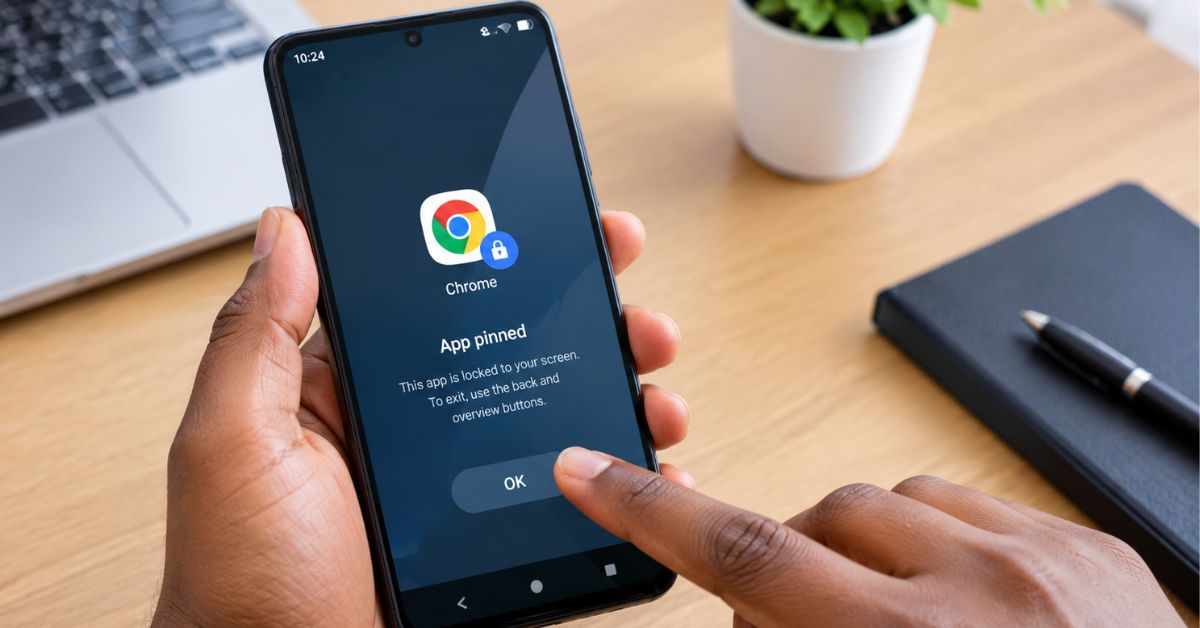
You may tap a social media link expecting it to open in Chrome, only for the corresponding app to take over. You might also prefer to view certain links in a browser instead of an installed application.
Android provides settings for handling supported links and default applications, although the exact wording and location can vary between phones.
Why Do Android Apps Open Links Automatically?
Android can associate particular web addresses with applications. If an application is configured to handle certain supported links, Android may send those links directly to the application instead of opening them in your browser.
For example, an installed video application may be configured to handle links associated with that service. This can be convenient when you want the app to open automatically. It can also become annoying when you would rather stay in your browser.
How to Stop Android Apps From Opening Links Automatically
The exact menu depends on your phone, but a common Android route is:
Settings → Apps → Default apps → Opening links
Some phones may use slightly different wording, such as Open by default, Set as default, or Opening links.
Android support discussions document this general path and the use of the Open supported links setting for controlling how applications handle their supported web addresses.
Step 1: Open Settings
Open the Settings application on your Android phone.
Step 2: Go to Apps
Look for Apps, Applications, or App Management. The name depends on the manufacturer.
Step 3: Find Default App Settings
Look for Default apps, on some devices, you may need to tap a three-dot menu or another settings option before finding it.
Step 4: Open the Link Settings
Look for Opening links, Open by default, or a similar option. This is where Android manages how applications respond to supported web addresses.
Step 5: Select the App
Find the application that keeps opening links automatically. Tap it to view its link-handling settings.
Step 6: Adjust Supported Links
Depending on your Android version and manufacturer, you may see an option such as Open supported links. Change the setting according to how you want the phone to handle those links.
Recent Android support discussions show that some versions may present the controls differently, including individual supported web addresses rather than one simple switch.
What If You Want Links to Open in Chrome?
If your main goal is to keep links in a browser, check your phone’s default browser setting as well.
Go to:
Settings → Apps → Default apps → Browser app
Then select your preferred browser if it is not already selected.
However, changing the default browser does not necessarily override every application’s own link-handling behavior. Some apps may still have specific supported-link settings.
What If One Particular App Keeps Taking Over?
You do not necessarily need to change all of your phone’s settings. Instead, focus on the application causing the problem. Go to:
Settings → Apps → [App Name] → Open by default
or the equivalent menu on your phone. Look for supported links or verified web addresses and adjust them where your device provides those controls.
This is particularly useful if you like most apps to open their links normally but want one specific application to stop taking over.
Why the Menu May Look Different
Android is used by many manufacturers, and each company can customize the interface.
A Google Pixel may use different wording from a Samsung Galaxy, Tecno, Infinix, Xiaomi or Oppo phone. Even two phones running different Android versions can display different options. That is why it is better to search your phone’s Settings for terms such as:
- Opening links
- Open by default
- Default apps
- Supported links
- App links
What If the Setting Is Already Correct?
Sometimes an application can still open a link unexpectedly even when its link settings appear correct. The problem may be related to the specific link, the application itself, or a recent app/system update.
Try these basic checks:
- Update the application.
- Update Android if an update is available.
- Restart the phone.
- Check the app’s Open by default settings again.
- Try opening a different link from the same service.
If only one website or one application is affected, the problem may not be a general Android setting.
Should You Uninstall the App?
Usually, no, if you use the application regularly, uninstalling it just because it opens certain links is unnecessary.
Try adjusting its link-handling settings first. If you rarely use the application and it is causing repeated problems, uninstalling it can be considered, but changing the relevant default settings is normally the less drastic solution.
Final Thoughts
If you have been searching for how to stop Android apps from opening links automatically, start with your phone’s apps and Default apps settings.
Look for opening links, open by default, or supported links, then adjust the application that keeps taking over your web links.
Because Android interfaces differ between manufacturers and versions, you may not see exactly the same menu described above. The important thing is to find the settings controlling which apps are allowed to handle supported web addresses.
This gives you more control over whether a link opens inside an application or through your preferred browser.