Completing NYSC online registration can feel like the biggest part of the mobilisation process, but there are still important documents to deal with afterward. One of them is the NYSC Green Card.
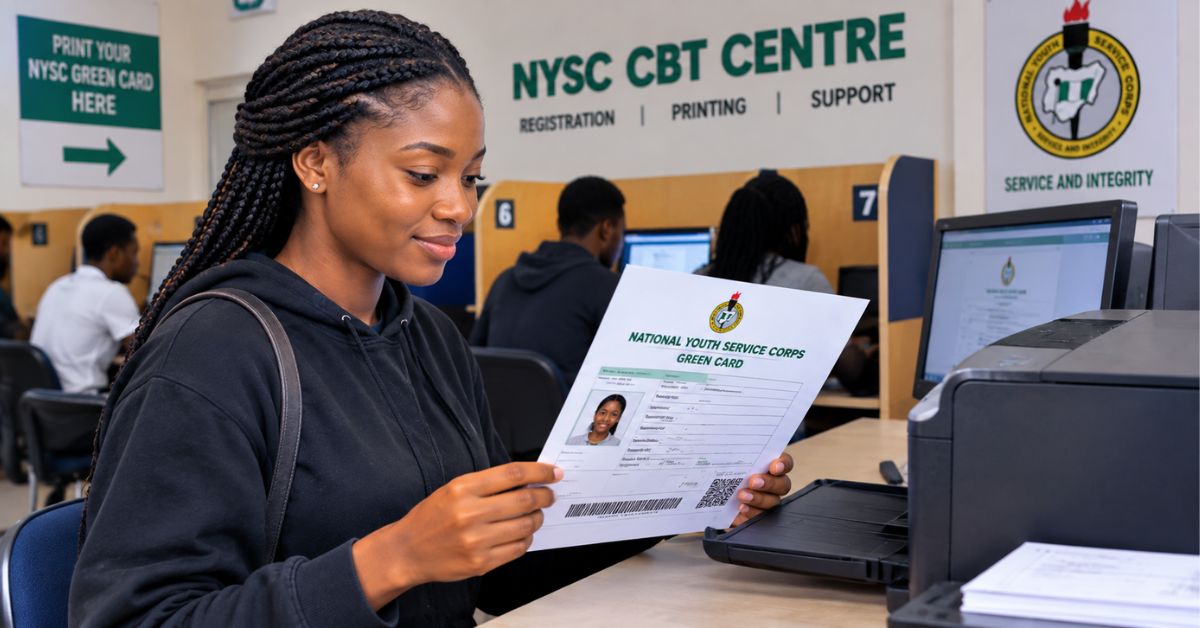
Many prospective corps members hear the name and assume it is an actual green identification card. It isn’t. The term generally refers to the registration slip generated through the NYSC candidate portal after completing the required registration process.
The document contains important information from your registration and is part of the paperwork prospective corps members prepare for the orientation camp.
If you have completed your NYSC registration and are wondering how to print your NYSC Green Card, the process is straightforward once the document becomes available on your dashboard.
What Is the NYSC Green Card?
The NYSC Green Card is an online registration printout generated after a prospective corps member completes the relevant registration process. It should not be confused with the NYSC call-up letter. The two documents serve different purposes and may become available at different stages.
Recent 2026 NYSC guidance describes the Green Card as a registration slip that can be accessed through the candidate dashboard after registration.
When Can You Print the NYSC Green Card?
You generally need to complete the relevant online registration steps before the Green Card becomes available for printing. If your registration is incomplete, your dashboard may not provide the expected print option.
It is therefore better to check your dashboard carefully instead of assuming that the absence of the Green Card means the portal is permanently malfunctioning. The availability of particular documents can also depend on the mobilization cycle.
How to Print Your NYSC Green Card
Step 1: Open the NYSC portal
Go to the official NYSC portal and access the candidate login area. Avoid entering your NYSC login information into websites that are not the official portal.
Step 2: Log into your account
Use the email address and password associated with your NYSC registration. Make sure you are logging into the same account you used during registration.
Creating another account because you cannot immediately see your Green Card may create additional confusion.
Step 3: Open your candidate dashboard
After logging in, check the dashboard for the available registration and document options. Depending on the current portal interface, the option may appear as Print Slip, Print Green Card or a similar document-printing option.
The exact appearance of the portal can change, so focus on the document-printing option available within your candidate dashboard.
Step 4: Select the Green Card or print slip option
Click the appropriate print option. Your Green Card should load as a document that you can view, download or print. A 2026 guide to the NYSC portal describes the process as logging into the dashboard and selecting the available print-slip option after registration.
Step 5: Review your information
Don’t rush straight to the printer, read through the document first. Check details such as:
- Your name
- Institution
- Course of study
- Registration information
- Photograph
- Call-up information where displayed
- Other personal information
If something appears incorrect, investigate the appropriate NYSC correction process instead of simply printing multiple copies of an incorrect document.
Step 6: Download and print it
If the portal provides a PDF or downloadable version, save a copy on your device before printing. This is useful because you can print another copy later without having to repeat the entire process. Use a clear printout and keep the document safely with your other NYSC papers.
What If the Green Card Is Not Showing?
This is one of the common concerns after registration.
- First, confirm that your online registration was actually completed.
- Then check whether there is any outstanding issue displayed on your dashboard.
- You should also confirm that your registration information and payment status, where applicable, have been properly processed.
If the portal is experiencing heavy traffic, you may also encounter temporary loading problems. In that situation, try again later rather than repeatedly submitting information.
Don’t Confuse the Green Card With the Call-Up Letter
The Green Card and call-up letter are not the same document. The Green Card is associated with your registration information.
The call-up letter is the document that provides the relevant mobilisation and orientation-camp information when NYSC releases it for your batch.
This distinction matters because a candidate may have one document available while waiting for another.
Should You Save a Digital Copy?
Yes, after printing your Green Card, keep the digital version somewhere safe. You can save it:
- On your phone
- On a computer
- In a secure cloud account
- On another personal storage device
The idea is simple: if the physical copy gets damaged or lost, you still have the document available for another print.
What Should You Do After Printing?
Printing the Green Card should not be treated as the final step in your NYSC preparation.
Continue checking your dashboard and official NYSC communications for relevant updates about your mobilisation cycle.
Also prepare your other required documents before travelling to the orientation camp.
Don’t wait until the day of camp registration to discover that an important document is missing.
Conclusion
NYSC Green Card printing is one of the important document steps after completing your online registration.
Log into the NYSC candidate portal, open your dashboard, locate the available print-slip or Green Card option, review your information, download the document if possible and print a clear copy.
Most importantly, keep the digital copy safe and don’t confuse the Green Card with the NYSC call-up letter.
Since NYSC portal procedures and mobilisation schedules can change between batches, candidates should always confirm the latest instructions on the official NYSC platform before travelling.