You may remember blocking someone on Facebook, but when you try to review your blocked profiles, the list is difficult to find or does not appear where you expect it. The problem can be confusing because Facebook’s settings are organized differently across devices and app versions.
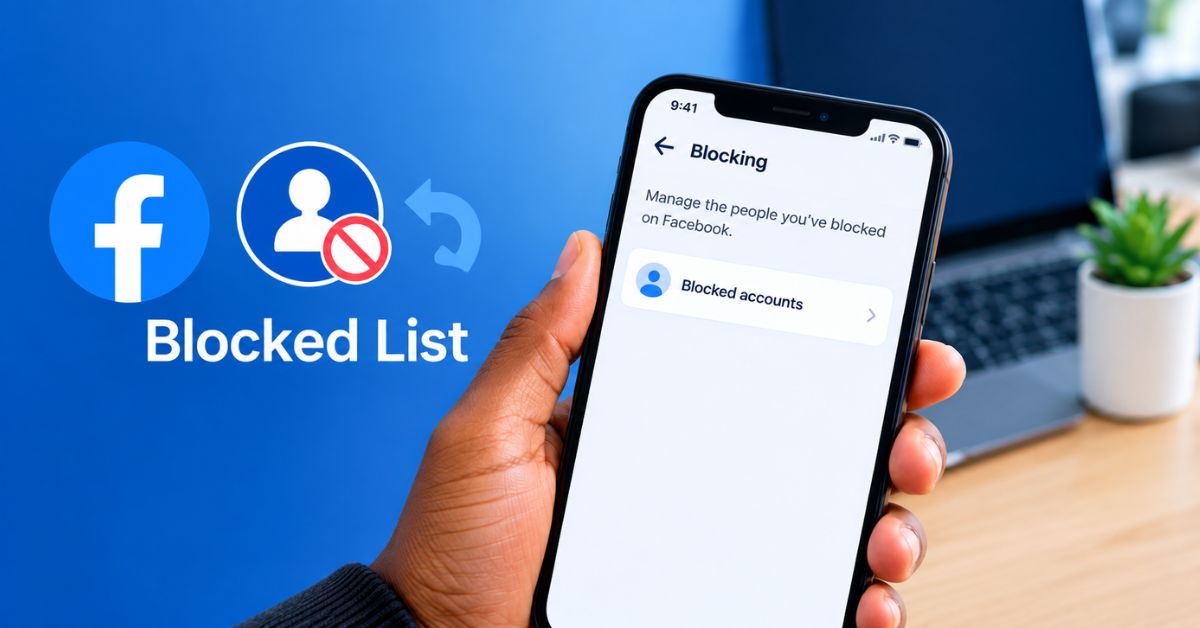
The blocked list is located within Facebook’s blocking settings. Meta’s Help Center provides instructions for accessing blocked profiles through Settings and Privacy and the Blocking section.
If your Facebook blocked list is not showing, use the steps below to check the settings and identify possible reasons.
Why Is the Facebook Blocked List Not Showing?
1. You Are Looking in the Wrong Settings Section
Facebook has several privacy and security options, and blocking is not necessarily displayed in the same place as every other privacy setting.
The route may differ between the mobile app and desktop website, so ensure you are following instructions intended for your device.
2. The App Interface Has Changed
Facebook updates its interface periodically. Menu names and the location of certain options may vary between versions. If you cannot find Blocking immediately, look through the settings search function if it is available on your device.
3. You Are Checking the Wrong Account
If you manage multiple Facebook accounts, verify that you are signed into the account where the person was blocked. A blocked list belongs to the account whose settings you are viewing.
How to Find Your Facebook Blocked List on a Computer
According to Facebook’s Help Center, you can access your blocked profiles through the following route:
- Open Facebook and sign in.
- Click your profile picture in the top-right corner.
- Select Settings & privacy.
- Click Settings.
- Under Audience and visibility, select Blocking.
- In the Block users section, select the option to view your blocked list.
Facebook’s official instructions identify the Blocking section as the place to review blocked profiles and manage unblocking.
How to Find the Blocked List on the Facebook App
The precise menu layout may differ between Android and iPhone.
Start by opening Facebook and accessing the main menu. Look for Settings & privacy, then open Settings and locate the Blocking section.
If your version of Facebook presents a different layout, use the settings search feature, where available, to look for “Blocking.”
Avoid relying on screenshots from older versions of Facebook as if they were guaranteed to match your current app.
How to Unblock Someone From Your Blocked List
Once you have located the blocked list:
- Find the profile you want to unblock.
- Select Unblock next to the person’s name.
- Follow the confirmation prompt displayed by Facebook.
Read the confirmation carefully before completing the action.
Unblocking someone does not automatically restore the previous friendship. You may need to send a new friend request if you want to reconnect.
What If the Person Is Not on Your Blocked List?
If you cannot find a particular person, consider whether you blocked their Facebook profile, their messages, or used another Facebook feature with separate controls.
Facebook’s Help Center distinguishes different blocking features, including profile blocking and message-related controls.
You should also confirm that you are checking the correct account and that the person has not changed their profile details.
Does Blocking Someone on Facebook Block Them Everywhere?
Not necessarily. Facebook explains that blocking may not apply to every interaction across external applications, and some content involving a blocked profile may still appear in certain circumstances.
For this reason, blocking should be understood as a tool for managing interactions on Facebook, not a guarantee that every possible reference to a person will disappear from your online experience.
Conclusion
When your Facebook blocked list is not showing, start by checking the correct account and opening the Blocking section through Settings. The exact menu arrangement can vary by device and app version.
If you want to unblock someone, use the list’s official controls and remember that unblocking does not automatically restore a previous friendship.