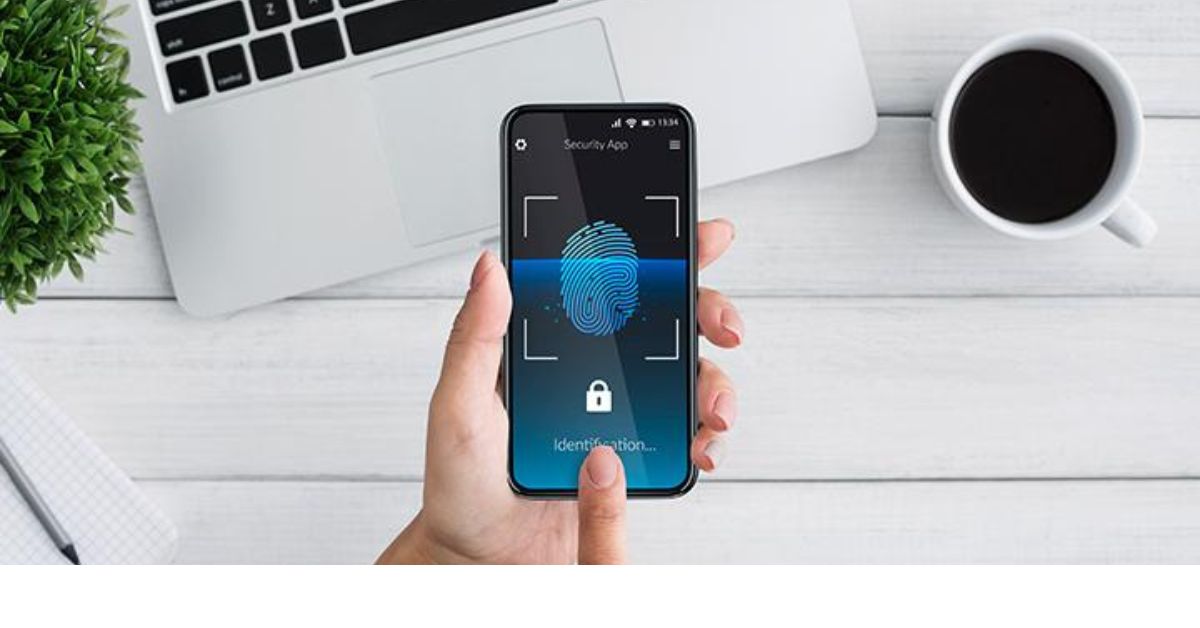
Passwords have been part of the internet for so long that most people barely think about how inconvenient they are. We create them, forget them, reset them, save them in browsers and sometimes reuse them across different websites. That is exactly the problem passkeys are designed to solve.
If you have an Android phone, you may already have the technology needed to use passkeys without realizing it. Instead of typing a password every time you sign in, a supported website or app can ask you to confirm your identity using your fingerprint, face unlock, PIN, pattern or another screen-lock method.
Google describes passkeys as an alternative to passwords that can be used with a biometric sensor, PIN or pattern. On supported Android devices, passkeys can also be stored and synchronized through Google Password Manager. But how exactly do you use them?
What Is a Passkey?
A passkey is a digital credential that allows you to sign in without entering a traditional password. The important difference is that a passkey is not simply a password saved somewhere on your phone. It uses public-key cryptography and is associated with the website or application for which it was created.
When you create one, the service keeps the public part of the credential while the private part is protected by your device or password manager.
This design provides an important security advantage: a passkey is tied to the website or service for which it was created, making it much harder to accidentally hand a useful credential to a fake website.
Google also notes that passkeys can protect users against phishing and do not require users to remember complicated combinations of letters, numbers and symbols.
What You Need Before Using Passkeys on Android
You do not need a special passwordless phone to get started. For Google Password Manager, passkeys can be used on Android 9 and later, provided the device has screen lock enabled.
You should also have:
- A supported Android phone
- Screen lock enabled
- A fingerprint, face unlock, PIN, pattern or other supported authentication method
- An app or website that supports passkeys
- A compatible password manager
Not every website or application supports passkeys yet, so you should not be surprised if the option does not appear on every login page.
How to Create a Passkey on Android
The exact wording can differ from one website or app to another, but the general process is straightforward.
1. Open the Website or App
Start by opening the account you want to protect.
If you already have an account, sign in normally first. Some services will automatically offer to create a passkey after you log in.
2. Look for the Passkey Option
Open the account’s security or login settings.
Look for options such as:
- Passkeys
- Create a passkey
- Add passkey
- Passwordless sign-in
- Security credentials
The option may appear immediately after you sign in or under the account’s security settings.
3. Choose to Create the Passkey
Tap the option to create a passkey. Android may then ask which credential provider should store it. Google Password Manager is one available option, although Android also supports compatible third-party password managers.
4. Confirm Your Identity
Your phone will normally ask you to use your existing screen-lock method. Depending on your device, this could mean touching the fingerprint sensor, looking at the screen for facial recognition, entering a PIN or entering your device password. Once authentication succeeds, the passkey is created.
5. Use It the Next Time You Sign In
When you return to the same website or app, select the passkey login option if offered. Your Android phone can then ask you to verify your identity using your device’s screen lock.
You do not need to remember the original password just to complete that passkey sign-in.
Where Are Android Passkeys Stored?
If you use Google Password Manager, your passkeys can be managed alongside your saved passwords. Google says passkeys saved in Google Password Manager can be synchronized across supported devices where you are signed into the same Google Account.
This is particularly useful if you change phones. Instead of creating every passkey again from scratch, supported passkeys can be available through the password manager on another compatible device.
Passkeys are also protected by encryption, and Google explains that biometric information such as a fingerprint is processed on the device rather than being shared with Google for authentication.
How to Find Your Passkeys on Android
You can manage your saved passkeys through Google Password Manager. On many Android phones, you can:
- Open Settings.
- Search for Password Manager.
- Open Google Password Manager.
- Look for the Passkeys section.
You can also access Google Password Manager through Chrome on supported devices. Google provides management options for viewing passwords and passkeys and controlling related settings.
The exact menu names can vary slightly depending on the Android version and phone manufacturer.
Can You Use an Android Passkey on a Computer?
Yes, passkeys are not necessarily restricted to the phone where they were originally created.
Google explains that Chrome supports cross-device authentication. For example, you may be able to select an option to use a phone or tablet when signing in on a computer and then scan a QR code with your mobile device.
This can be useful when your computer does not have the passkey available locally. You authenticate on the phone and approve the sign-in.
What If Your Phone Is Lost?
Losing your phone does not automatically mean that every passkey is permanently lost.
When passkeys are synchronized through a supported password manager, they can potentially be recovered on another compatible device after you regain access to the relevant account and complete the required security verification.
Google says synchronized passkeys can be recovered on a new Android device, subject to the security requirements of the password manager and device.
This is one reason protecting your Google Account and device screen lock remains extremely important.
Passkeys vs Passwords
For supported services, passkeys offer several advantages. You do not have to memorize another password. You also avoid many of the common problems associated with weak, reused or easily guessed passwords.
Passkeys are designed to resist phishing because the credential is linked to the website or application where it was created. However, this does not mean you should become careless about security.
A strong device screen lock is still important. You should also keep your Android software updated, protect your Google Account and avoid installing suspicious applications.
Why Some Websites Still Ask for a Password
Don’t assume something is wrong if a website still asks for your password. Passkeys are not universally supported. Some websites have adopted them while others continue to rely on traditional passwords, two-factor authentication or other login methods.
Google’s Android documentation explicitly notes that not all applications and websites support passkeys. You may therefore have a mixture of password-based and passkey-based accounts for some time.
Should You Switch All Your Accounts to Passkeys?
If your important accounts support passkeys, there is a good reason to consider using them. Start with accounts that contain valuable personal information, financial information or important files.
Do not delete your existing password simply because you created a passkey unless the service specifically explains that the password is no longer necessary.
It is also wise to keep your account recovery information current. A passwordless login system is still connected to the broader security of your account.
Conclusion
Learning how to use passkeys on Android is much easier than the technology behind them might suggest. For supported websites and apps, you can create a passkey, protect it through your Android device’s screen lock and then use your fingerprint, face unlock, PIN or another supported method instead of repeatedly typing a password.
Google Password Manager makes the process particularly convenient because it can store and synchronize passkeys across supported devices.
The biggest advantage is not simply convenience. Passkeys are designed to reduce dependence on passwords and provide stronger protection against several common attacks, including phishing.
If a website you regularly use supports passkeys, checking its security settings and adding one could be one of the simplest security upgrades you make to your account.