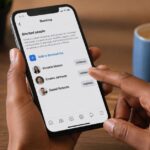
Managing a Facebook Business Page comes with a lot of responsibility—especially when it comes to handling interactions with your audience. Sometimes, blocking a user is necessary to protect your brand from spam, harassment, or inappropriate behavior. However, there may come a time when you want to reverse that decision.
If you’re wondering how to unblock someone on your Facebook Business Page, this guide will walk you through the exact steps, explain what happens after unblocking, and share helpful tips to manage your page effectively.
What Happens When You Unblock Someone?
When you unblock a user from your Facebook Business Page:
- They can like, comment, and interact with your page again.
- They can send messages to your page (if messaging is enabled).
- They will not automatically follow or like your page again.
- Previous comments or messages do not get restored.
Also, Facebook may require you to wait 48 hours before blocking the same person again, so be sure of your decision.
Guide to Unblock Someone on a Facebook Business Page
Follow these simple steps to unblock a user:
Method 1: Using Desktop (Recommended)
- Log in to your Facebook account
Make sure you are logged into the account that manages the Business Page. - Go to your Facebook Business Page
From your homepage, navigate to the page you manage. - Access Page Settings
On the left-hand menu, scroll down and click on “Settings.” - Click on “Privacy” or “People and Other Pages”
Depending on your page layout, you may see:- “Privacy” → then “Blocking”
- Or directly “People and Other Pages”
- Locate the list of blocked users
You will see a list of people you’ve blocked from your page. - Find the person you want to unblock
Scroll or search for their name. - Click “Unblock” next to their name
Confirm your action when prompted.
That’s it! The person is now unblocked and can interact with your page again.
Method 2: Using Mobile (Facebook App)
If you’re using your phone, here’s how to unblock someone:
- Open the Facebook app and log in.
- Tap the menu icon (three lines).
- Go to Pages and select your Business Page.
- Tap the Settings (gear icon).
- Scroll to Privacy or People and Other Pages.
- Select Blocked People and Pages.
- Find the person and tap Unblock.
Alternative Method: Via Meta Business Suite
If you manage your page using Meta Business tools:
- Open Meta Business Suite.
- Go to Settings.
- Click on People or Page Settings.
- Navigate to the Blocked Users section.
- Select the person and click Unblock.
This method is especially useful if you manage multiple pages.
Important Things to Keep in Mind
Unblocking someone is simple, but there are a few key things to remember:
1. Unblocking Doesn’t Restore Past Interactions
If the person had previously commented or messaged your page, those interactions will not reappear.
2. They Won’t Automatically Like Your Page
After being unblocked, the user will need to manually like or follow your page again.
3. Be Prepared for Interaction
Make sure you’re ready to engage positively if the person reaches out again.
4. You Can’t Immediately Re-block Them
Facebook enforces a short waiting period before you can block the same user again.
When Should You Avoid Unblocking?
While unblocking can be beneficial, there are situations where it may not be the best decision:
- If the user was abusive or threatening
- If they were spamming your page repeatedly
- If their behavior could damage your brand reputation
In such cases, it’s better to keep them blocked for the safety of your business and audience.
Tips for Managing Your Facebook Business Page Effectively
To avoid frequent blocking and unblocking, consider these best practices:
1. Set Clear Community Guidelines
Let users know what behavior is acceptable on your page. This helps reduce conflicts.
2. Use Moderation Tools
Facebook allows you to:
- Filter profanity
- Block certain keywords
- Review comments before they appear
3. Respond Professionally
Even when dealing with difficult users, maintain a calm and professional tone.
4. Monitor Your Page Regularly
Stay active so you can quickly address issues before they escalate.
Conclusion
Unblocking someone on a Facebook Business Page is a simple yet powerful action. Whether you’re correcting a mistake or giving someone a second chance, the process only takes a few clicks.
However, always weigh the decision carefully. Your page represents your brand, and maintaining a safe, respectful environment should always come first.
By following the steps in this guide and applying smart page management strategies, you can maintain control while still creating room for positive engagement and growth.
Frequently Asked Questions
Can the person see that I unblocked them?
No, Facebook does not notify users when they are unblocked.
Can they message my page immediately after unblocking?
Yes, if your page messaging feature is enabled.
Can I block them again later?
Yes, but you may need to wait a short period before doing so.